How to Generate Documentation from Code Using AI (2026 Guide)
Generate code documentation with AI in minutes. Compare Mintlify, DocuWriter.ai, Cursor, Claude Code, and ChatGPT workflows with ready-to-use prompts.
TL;DR
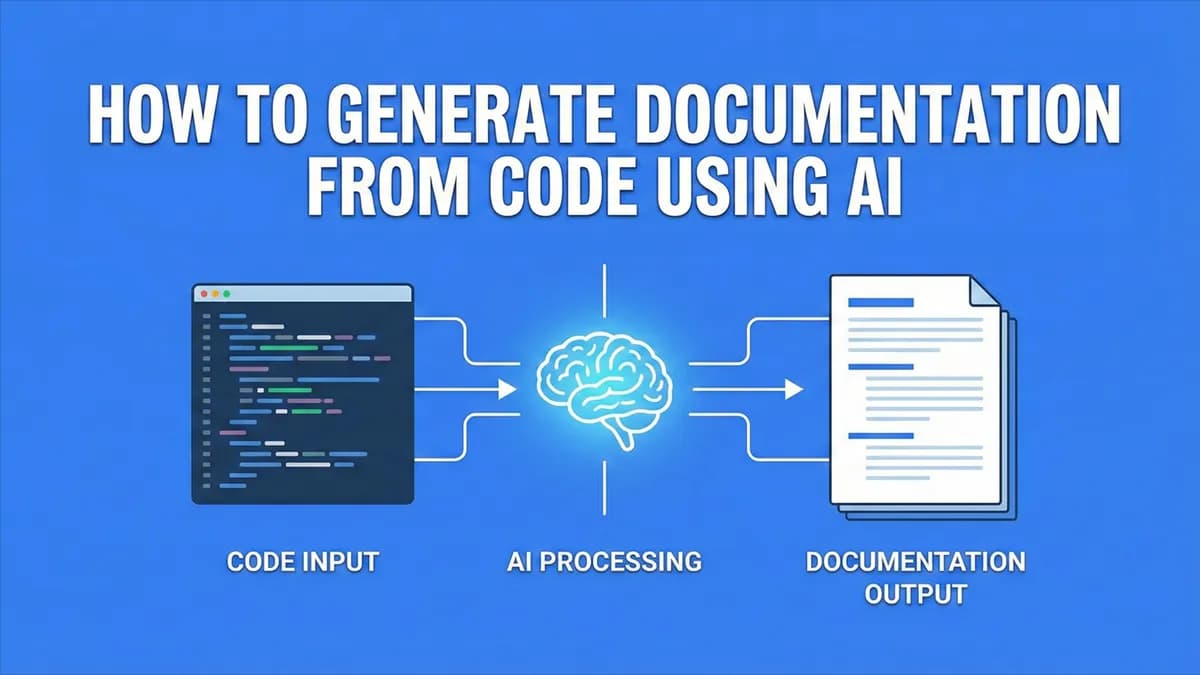
AI can generate documentation for your entire codebase in minutes. The best approaches: dedicated tools like Mintlify and DocuWriter.ai, AI coding assistants like Cursor and Claude Code, or general-purpose AI like ChatGPT/Claude with your codebase uploaded.
Quick workflow: Use OneFile to combine your codebase into one file, upload to any AI, and generate docs with a single prompt.
Documentation is the least favorite task for most developers. It's tedious, time-consuming, and often outdated the moment you finish writing it.
But in 2026, AI has fundamentally changed how we approach documentation. You can now generate comprehensive, accurate documentation for an entire codebase in minutes, not days.
This guide covers every practical method to generate documentation from code using AI, from dedicated documentation platforms to prompts you can use with any AI assistant.
Why AI-Generated Documentation Works
Before diving into tools, let's address the skepticism: Can AI really write good documentation?
The answer is yes, with caveats. AI excels at:
- Describing what code does: Function signatures, parameters, return types
- Explaining logic flow: How different parts connect and interact
- Generating consistent formatting: JSDoc, docstrings, markdown
- Creating boilerplate docs: README files, API references, setup guides
AI struggles with:
- Business context: Why certain decisions were made
- Edge cases: Subtle behaviors that aren't obvious from code
- Institutional knowledge: Historical context, deprecated approaches
The best approach: use AI to generate the 80% of documentation that's mechanical, then spend your time on the 20% that requires human context.
Method 1: Dedicated Documentation Platforms
If documentation is a serious need for your team, dedicated platforms offer the most polished experience.
Mintlify
Mintlify is used by companies like Anthropic, Cursor, and Perplexity for their public documentation. It's an AI-powered documentation platform that creates beautiful, searchable docs.
Key features:
- AI writing assistant: Generate and improve documentation with AI suggestions
- Git-based workflow: Docs live in your repo, update with your code
- API reference generation: Automatically generate docs from OpenAPI specs
- Beautiful templates: Professional design out of the box
- Search powered by AI: Users can ask questions, not just search keywords
Best for: Teams building public-facing documentation, API references, and developer portals.
How to use:
- Connect your GitHub repository to Mintlify
- Add a
docs/folder with markdown files - Use Mintlify's AI to generate initial content from your codebase
- Customize and refine with their visual editor
- Deploy (docs auto-update when you push to Git)
Mintlify offers a generous free tier for open-source projects. If you're building in public, start there.
DocuWriter.ai
DocuWriter.ai focuses specifically on generating code documentation and API docs from source files.
Key features:
- Code documentation generation: Analyzes source files and generates inline docs
- API documentation: Creates comprehensive API references
- Multiple languages: Supports JavaScript, Python, Java, Go, and more
- GitHub integration: Import repositories directly
- Export options: Markdown, HTML, or integrate with your existing docs
Best for: Generating technical documentation quickly, especially inline code comments and API references.
Workflow with OneFile:
Before generating documentation with DocuWriter.ai, you can use OneFile to prepare your codebase:
- Go to onefileapp.com and upload your project folder (or import from GitHub)
- Download the combined file
- Upload to DocuWriter.ai for analysis
- Review generated documentation and export
Alternatively, DocuWriter.ai supports direct GitHub import.
Method 2: AI Coding Assistants
If you already use an AI coding assistant, you have powerful documentation capabilities built in. These tools understand your codebase context and can generate docs inline as you work.
Cursor
Cursor is an AI-first code editor built on VS Code. It can generate documentation across your entire project.
Generate inline documentation:
- Select a function or a code block
- Press
Cmd+K(Mac) orCtrl+K(Windows) - Type: "Add JSDoc comments to all functions"
Generate a README:
- Open the AI pane with
Cmd+I - Use this prompt:
Analyze this codebase and generate a comprehensive README.md that includes:
1. Project overview and purpose
2. Tech stack and dependencies
3. Installation instructions
4. Usage examples with code snippets
5. Project structure explanation
6. Configuration options
7. Contributing guidelines
Base everything on the actual code, not assumptions.
Windsurf
Windsurf (by Codeium) is another AI-powered IDE with strong documentation capabilities through its Cascade feature.
Best documentation prompt for Windsurf:
I need comprehensive documentation for this project. Please:
1. Add docstrings/JSDoc to all functions and classes that lack them
2. Generate a README with setup instructions
3. Create an API.md file documenting all public interfaces
4. Add inline comments explaining complex logic
Use the existing code style and conventions.
Claude Code (CLI)
Claude Code is Anthropic's command-line tool that brings Claude directly into your terminal with full codebase awareness.
Why it's great for documentation:
- Automatically indexes your entire codebase
- Understands file relationships and dependencies
- Can create and edit multiple files at once
- Works from your terminal with no practical context window limits
Documentation prompts for Claude Code:
Generate a complete README:
Generate a detailed README.md for this project. Include:
- What this project does (based on actual code analysis)
- How to install and run it
- Key features with examples
- Project structure overview
- Environment variables and configuration
Add documentation to existing code:
Add comprehensive documentation to all files in src/. For each function:
- Add JSDoc/docstring with description
- Document all parameters and return types
- Add @example where helpful
- Note any side effects or important behaviors
Generate API documentation:
Create an API.md file documenting all exported functions and classes.
For each export include:
- Function signature
- Description of what it does
- Parameters table (name, type, description)
- Return value
- Usage example
Group by module/file.
Claude Code works best when you give it specific, structured requests. The more detail in your prompt, the better the output.
Method 3: General-Purpose AI (ChatGPT, Claude, Gemini)
Don't have access to specialized tools? Any modern AI assistant can generate documentation. You just need to give it your code.
The Challenge: Context
The main limitation of ChatGPT, Claude, and Gemini for documentation is context. They can only see what you paste or upload. For a single file, that's easy. For an entire codebase? You need a strategy.
Solution: Combine Your Codebase First
The most effective approach is to combine your entire codebase into a single file before uploading. This gives the AI complete context to understand how everything connects.
Using OneFile:
- Go to onefileapp.com
- Drag your project folder (or import from GitHub)
- OneFile automatically skips
node_modules,.git, build artifacts - Download the combined file
- Upload to ChatGPT, Claude, or Gemini
OneFile respects your .gitignore file, so only relevant source code is included. No need to manually filter out dependencies.
Best Documentation Prompts
Once your codebase is uploaded, use these prompts:
Comprehensive README:
I've uploaded my entire codebase. Please generate a professional README.md that includes:
## Overview
- What this project does (analyze the actual code)
- Key features and capabilities
## Tech Stack
- List all frameworks, libraries, and tools used
## Getting Started
- Prerequisites
- Installation steps (check package.json or requirements.txt)
- How to run the project
## Project Structure
- Explain the folder organization
- Describe key files and their purposes
## Usage
- Common use cases with examples
## Configuration
- Environment variables (check for .env.example or config files)
- Available options
Base everything on the actual code, not assumptions. Use markdown formatting.
API Documentation:
Generate API documentation for this codebase. For each public function/method/endpoint:
- Name and signature
- Description of what it does
- Parameters (name, type, required/optional, description)
- Return value (type and description)
- Example usage
- Any errors it might throw
Organize by module or feature area. Output in markdown format suitable for a docs site.
Inline Code Comments:
For each function in this codebase, generate JSDoc comments (or docstrings for Python) that include:
- @description - What the function does
- @param - Each parameter with type and description
- @returns - What it returns
- @throws - Any exceptions (if applicable)
- @example - A usage example
Output as a list of functions with their complete documentation blocks that I can copy into my code.
Architecture Overview:
Analyze this codebase and create an ARCHITECTURE.md document that explains:
1. High-level system design
2. How data flows through the application
3. Key components and their responsibilities
4. How components interact with each other
5. Design patterns used
6. Database schema (if applicable)
7. External integrations
Include ASCII diagrams where helpful. This should help a new developer understand the codebase quickly.
Model Comparison for Documentation
| Model | Context Window | Best For |
|---|---|---|
| GPT-4o | 128K tokens | Medium codebases, good all-rounder |
| Claude 3.5 Sonnet | 200K tokens | Large codebases, detailed technical docs |
| Gemini 1.5 Pro | 1M+ tokens | Very large codebases, monorepos |
| Claude 3 Opus | 200K tokens | Complex architecture docs, nuanced explanations |
Best Practices for AI-Generated Documentation
1. Always Review and Edit
AI-generated documentation is a starting point, not a finished product. Always review for:
- Accuracy (AI can misunderstand intent)
- Completeness (important details might be missing)
- Tone (ensure it matches your team's style)
- Security (remove any sensitive information that slipped through)
2. Provide Context in Your Prompts
The more context you give, the better the output. Include:
- Who the documentation is for (beginners, experienced devs, end users)
- What format you need (markdown, JSDoc, reStructuredText)
- Any existing conventions in your project
- Specific areas that need more detail
3. Document Incrementally
Don't try to document everything at once. Start with:
- README: Project overview and quick start
- API reference: Public interfaces and functions
- Architecture: How the system works
- Contributing guide: How to add new code
4. Keep Documentation in Sync
Documentation that's out of date is worse than no documentation. Use tools that integrate with your Git workflow (like Mintlify) or regenerate docs periodically with AI.
Don't commit AI-generated docs without review. Hallucinations happen. A wrong code example in your docs can waste hours of developer time.
Quick Reference: Which Method to Use
| Situation | Recommended Method |
|---|---|
| Public documentation site | Mintlify |
| Quick API docs from code | DocuWriter.ai |
| Inline code comments | Cursor / Windsurf / Claude Code |
| One-time README generation | OneFile + ChatGPT/Claude |
| Large monorepo | OneFile + Gemini (1M context) |
| Ongoing documentation updates | Claude Code (terminal-based) |
Conclusion
Documentation no longer has to be the task you dread. With AI tools available in 2026, you can generate comprehensive docs in minutes instead of days.
The key is choosing the right tool for your needs:
- Mintlify for polished, public-facing documentation
- DocuWriter.ai for quick code and API documentation
- Cursor, Windsurf, or Claude Code for inline docs as you code
- ChatGPT, Claude, or Gemini (with OneFile) for flexible, one-time documentation tasks
Start with a README. It takes five minutes with AI and makes your project immediately more accessible to others, and to future you.
Quick start: Upload your project to OneFile, download the combined file, paste into Claude or ChatGPT, and ask for a README. You'll have professional documentation in under 5 minutes.